
Bare-Metal THORNode: Comprehensive Guide
The ‘paint by numbers’ n00b guide to creating a bare-metal THORNode. For members of the THORChain community, it covers hardware through to troubleshooting.


This instructional guide aims to serve as a ‘paint by numbers’ approach for members of the THORChain community who are wishing to run a Bare-Metal (BM) THORNode (node). This guide will include every step from hardware design through to troubleshooting of an active node (and everything in between). THORChain Docs does a good job at explaining the basics about running a node and Scorch’s guide has some great learning resources (see below). This comprehensive guide does not replace the node operator’s onus to have a baseline knowledge in Linux, CLI, Kubernetes, DevOps and other concepts that are required.
It must be said, running a THORChain THORNode is no trivial endeavour. The stakes are VERY high and there is little to no recourse for catastrophic errors, mistakes, hacks, or vulnerabilities.
As always, running commands that you found on the internet is not ideal… you should proceed with skepticism and caution. Fact check, confirm, verify, independently validate and ultimately accept responsibility for your own node. THORChain is not liable for mistakes in the guide, or mistakes you make… it is your node and you are 100% responsible for it!
This guide is a living document that is periodically kept up to date by various node operator feedback. If you become a node operator, and have ideas on how the guide can be improved, pay it forward and let the community know.
THORNode Guide History
The guide was only made possible because we were able to stand on the shoulder’s of giants. Hildisvíni Óttar provided the foundational guides but they have since been removed; thanks nonetheless. Here is a summary of the progress made to date:
Guide on Self-Hosted Bare-Metal (by Scorch)
 Scorch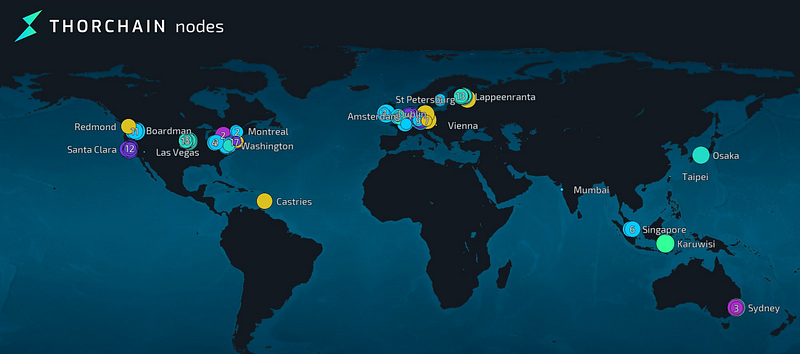
Bare-Metal Series (by D5 Sammy)
 D5 Sammy
 D5 Sammy
 D5 Sammy
 D5 Sammy
 D5 Sammy
It is strongly recommended that you read through all of the preceding guides to get a broad-brush understanding of what they are trying to achieve; do this before you commence building your node. These earlier guides contain a wealth of knowledge with useful links and explanatory information that our guide may lack. We will attempt to cover off on everything that you need but there is no guarantee that we will be successful in this goal.
Key Differences in the Guides
Approach to running the BM node:
The previous guides achieve the same result (setting up and running a BM node) but do it via differing approaches; running a THORNode via a centralised cloud provider (AWS, DigitalOcean etc), running BM node via a service provider (eg: VULTR), running a BM node on a self-hosted computer setup and running multiple BM nodes on a self-hosted server-style setup.
- Cloud providers (AWS, DigitalOcean etc) were historically ~$3,500USD/month since the hardware requirements were so high. With the addition of BASE and XRP, it would be closer to $5,000USD/month; hence not viable.
- VULTR is ~$1,450USD/month for 1–3 nodes but scales well with >3 nodes ($2,925USD/month for up to ~8 nodes). For those that don’t have adequate power stability or connectivity, VULTR is the way to go.
- Self-hosted BM via prosumer style computer tower costs ~$3,000USD to setup but then the ongoing cost is negligible (home internet is constant but the home electricity will go up). See Scorch’s guide for specifics but ~$1USD/day.
- Self-hosted multiple BM nodes via a commercial grade server style setup costs ~$21,000USD to setup but can run 8 nodes (~$2,650USD/node).
Our Solution:
We elected to go the self-hosted BM prosumer setup so that we could prove the concept (that we are capable of setting up and running a BM node) and have the ability to expand by linking another BM server and sharing resources. By linking two BM servers together we are able to run 3 nodes; a MAYANode, a THORNode and a pooled THORNode (correct as of 13 Sep 23).
BM nodes are essentially CPU limited. The top of the line prosumer CPU is the AMD Ryzen 9 7950x (16core/32thread) but this lacks the capacity to run 2 full THORNodes (without manipulation). The next step for a single setup is the AMD Ryzen Threadripper series (7980x; 64core/128thread) and then AMD EPYC series with a lot more CPU threads (see D5 Sammy’s guides) but obviously they are a lot more expensive.
LVM or RAID-0:
D5 Sammy covers the Pro’s and Con’s of each approach very well (in the Hardware Guide). Ultimately we elected to go the LVM approach as it seemed easier to add additional storage when it is inevitably required. This is an individual preference, if you prefer RAID-0 then swap to the appropriate guide for that section.
Spoofing IP or WireGuard Proxy:
Fundamentally, what you want is to protect your physical location by hiding behind a fake IP (your node needs a Static Public IP). Spoofing IP was a good initial work around but the WireGuard Proxy is certainly the more mature and robust solution. Nobody uses IP Spoofing anymore as the WireGuard Proxy (or similar VPN tunnel) is so much more effective and healthy for the network.
Kubernetes k3s or k8s:
The OG guide by Hildisvíni Óttar and then Scorch’s guide both used k3s (the more lightweight client) but after strong recommendations from the Core Devs, D5 Sammy went with the k8s client. We ultimately went k8s so that our setup was closely linked with D5 Sammy; we want the option to go multi-node and wanted as much overlap as possible.
Hardware
This is a list of the components that we elected to use for our BM node:
- CPU: AMD Ryzen 9 7950X (16core/32thread)
- CPU Cooler: Deepcool AG620 Multi Socket CPU Cooler
- Motherboard: Gigabyte B650 Gaming X AX AM5 ATX
- Memory: 2 x Corsair 64GB (2x32GB) CMK64GX5M2B5600Z40 Vengeance CL40 x2 (128GB Memory)
- Storage: 3 x Silicon Power 4TB XS70 PCIe Gen4 M.2 NVMe SSD (12TB NVMe SSD Storage).
+
1 x Silicon Power 500GB SATA/M.2 SSD (Boot/OS Drive) - Power Supply: Corsair RM850e 850W 80+ Gold Fully Modular Power Supply
- Case: SilverStone Fara R1 V2 Tempered Glass ATX Case — Black
140mm Fans x2. Admittedly, the setup is quite loud so perhaps a quieter case could be explored. It is fine for the office (not a living space) but noticeable for sure. - Internet: 1 GBPS connection (1000MBPS down/ 50MBPS up) will work for a single node. Multiple nodes will required more “up” capability (eg: 1000MBPS down/400MBPS up would be good up to 4 nodes). Make sure you have a decent router; something like a prosumer ASUS router. More n00b advice, connect it via a LAN cable or you will rob yourself of speed via a Wi-Fi connection.
- UPS: We went a small 1100VA/660W UPS to protect the hardware against surges and small power outages (<20 mins); more for equipment protection than up-time. Our power grid is ultra-stable, we have solar and can stomach small periods of downtime (especially now that YGGDRASIL vaults have been deprecated). UPS will only keep your node alive if your internet devices are connected too. Best solution is a full house backup battery but obviously expensive.
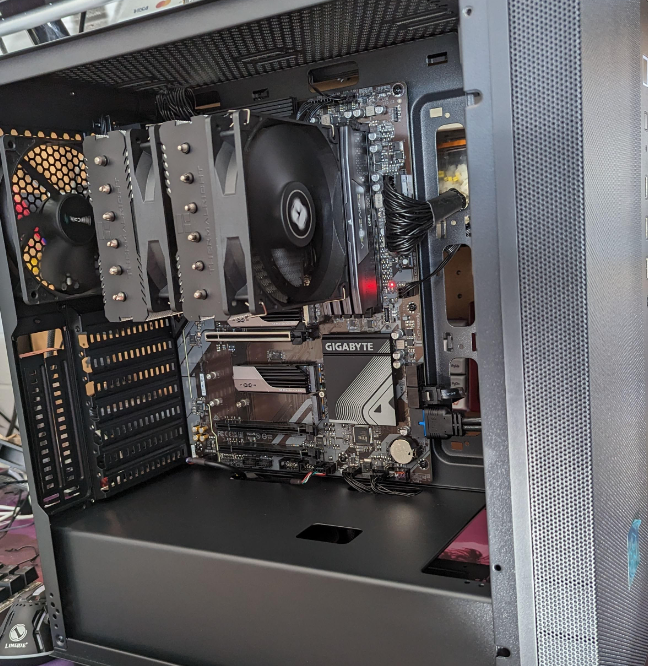
The main focus is to get an AMD CPU with enough core/threads to cover the resources you require (see below) and to get the best storage that you can find (definitely M.2 NVMe SSD or even U.3 Enterprise Drives).
You can source the parts to build it yourself but your local supplier or computer builder will likely be able to do a better job than you (with none of the frustrations or headaches) for ~$150USD. We just paid the money to have the hardware built for us; highly recommended.
Required CPU Resources
After reading through the entire channel history of #Bare-metal-nodes and reading every guide available, this question remained:
“What is the minimum resources/hardware required to run a THORNode?”
The common consensus (which informed the build of our machines) is:
* 16 Core/32 Thread AMD Ryzen CPU
* 128GB of RAM
* 12TB of SSD Storage
The next questions was:
“Can you run 2 THORNodes on this setup?”
The answer is no. The limiting factor is the CPU resource requirements that are required by the THORNode and services. Here is the summary (measuring in CPU threads; correct as of 04 Jun 25) that can be found in the values.yaml for each service (note: SOL and other new chain daemons are not factored here; RPC likely the best solution):
- Ethereum Daemon — 2*
- GAIA Daemon — 4*
- Avalanche Daemon — 1*
- Bitcoin Daemon — 1*
- Litecoin Daemon — 1*
- Dogecoin Daemon — 1*
- Bitcoin-Cash Daemon — 1*
- Binance Smart Daemon — 4*
- Base Daemon — 1*
- XRP Daemon — 12*
- Gateway — 0.2 (ie: 1)
- THORNode Daemon — 4
- Bifrost Daemon — 4
TOTAL: 37CPU threads
Note: Due to XRP, you cannot fit on a 7950x anymore without linking two together or renting XRP RPC & not running yourself.
* ~ Can be shared across multiple BM nodes (Note: historically the UTXO chain could not be share but as of mid-2024, this is not the case anymore).
D5 Sammy has successfully runs 7 BM nodes on his setup but he does have 128 CPU threads. He was clever enough to share the services that are capable of being shared (see the asterisked daemons in the list above). At minimum, each BM node needs to run 9 threads (the un-asterisked daemons above) so you can do the math as to how many CPU threads you need.
As you can see above, a single AMD Ryzen CPU is no longer big enough to run a single node anymore (unless you exclude XRP or other daemons and rent them via RPC). The other option is to link two AMD Ryzen CPU BM servers together for the combined capacity of 32core/64thread. This has been tested in the wild and works as advertised (for 2 x THORNode and 1 x MAYANode). There are many variations that you can run but keep in mind that the internet connectivity would likely become the limiting factor.
New chain daemons are slated to be added and these will likely be very resource hungry. They would need to be rented via RPC, on a standalone computer tower (linked) or the machine would need to be much larger than the 7950x setup.
With the knowledge of how to calculate the minimum CPU requirements (and avoiding the temptation to simply lowering the resource requirements), you will be able to work out the minimum resources that you need to run multiple nodes. Remember, MAYANodes are basically the same as THORNodes and can share some services too!
General Advice before software setup
Here is an unordered list of advice before starting to setup the software side of your THORNode:
- Read and re-read all of the previous guides. Seriously, just print them out, highlight all the sections that are relevant/actionable and write notes for all of the questions that you have. You will resolve each question eventually so you might as well have them written down.
- ChatGPT is amazing to help understand what specific commands are trying to achieve. This is a good starting place if you honestly do not know where to start. Once you grasp the concepts of what is being asked, you can look at other online learning resources to understand it more deeply.
- Join the THORChain Discord and ask advice in the #Bare-metal-nodes channel. The members in this group are exceptionally generous with their time and knowledge but they will not hold your hand through it all or spoon-feed you basic concepts you can easily learn by reading above in the chat or elsewhere online.
- SSH into your BM node vice using an attached Keyboard and Mouse. It might be obvious to some but it became blatantly obvious to me when setting up the WireGuard proxy (lots of copy and paste)! Be careful if opening your SSH to the world, perhaps just whitelist your specific IPs.
- Physical security is key. Do not tell anyone IRL about your node and certainly hide behind an anonymous online account. Take all other sensible precautions as if you had a multi-million dollar pile of gold sitting in your living room.
- Make sure that you are comfortable with all of the aspects of running a node before you actually bond to the network. Except for the cost of the hardware (and maybe the opportunity cost of not being churn into the network), you are not losing any money by taking your time. Build the BM node up, add a small amount of $RUNE and run all commands up to sending the full bond (eg:
make set-versionmake set-node-keysetc). After you are comfortable with the building of the BM node, practice maintaining it (make update) and even practice pulling it all back down. You can do this via Leaving/Destroying or you can just usemake recycle(more on this later).
Operating System Setup
Concept: You have a brand new BM rig with the base hardware specifications that were suggested above. Now is the stage to install the Linux Ubuntu Server Operating System (OS) which has no graphic interface (it is all CLI). You will setup and configure from the official Ubuntu Server Guide, then use SSH to remotely access the BM rig and finalise laying the foundation for your BM node.
OS Installation:
- Download and install the an Ubuntu Server LTS (eg: Ubuntu 22.04.02 LTS is what we used, do not use Ubuntu 24.02+ LTS because there is some compatibility issues later on) on a bootable USB drive (using etcher).
- Plug-in the bootable USB and restart your BM computer.
- Select ‘Install’, update Installer (if you desire), select Base (Ubuntu Server), choose language, select keyboard layout (google what yours is called).
- Proxy=blank (by default; Enter through it), Mirror=default (Enter through it), Choose the correct drive (500GB OS/boot drive; not 4TB options), deselect LVM (we will do it later), ‘Install Ubuntu’ and accept default networking.
- Select ‘Use an Entire Disk’ for storage and ensure you select the 500GB drive. Accept default partitions and confirm changes (it is a new blank drive so no risk of losing important data).
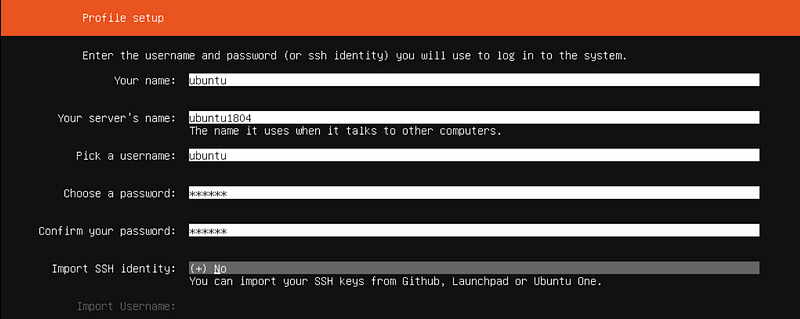
- Choose preferred naming conventions (plus a long, unique and secure password). This creates a new profile for you (non-root).
- Skip Ubuntu Pro option, Install OpenSSH (so that you enable enable the SSH service) and choose extra packages to install (we did not select any extra beyond the OpenSSH earlier).
- Finalise installation and reboot (it will prompt you to remove the USB drive and reboot again).
- Install and upgrade the latest versions of everything on the new OS:
sudo apt update
sudo apt upgrade

('y' to accept the extra storage required)
Note: If prompted for merging, select the first option, “install the package maintainer’s version”. Accept default restart requests.
CPU Optimisation:
As you are running a single tenant hardware node, with a known code base, you are able to optimise the CPU for better raw performance.
Reference: https://sleeplessbeastie.eu/2020/03/27/how-to-disable-mitigations-for-cpu-vulnerabilities/
lscpu
sudo nano /etc/default/grub
Add mitigations=off to GRUB_CMDLINE_LINUX_DEFAULT
GRUB_CMDLINE_LINUX_DEFAULT=”quiet splash mitigations=off”

CTRL+X (to exit), Y (to save the changes), Enter (keep the same name)
Reload the file:
sudo update-grubNow reboot and confirm mitigations are off before continuing.
sudo reboot
lscpu
Now you can turn your attentions to the ‘swappiness’. It is likely set high (60) but can be reduced with a high RAM server:
Edit /etc/sysctl.conf as root
sudo nano /etc/sysctl.confAdd the following line to the bottom of the file (choose 10 or 20; user preference):
vm.swappiness = 20

CTRL+X (to exit), Y (to save the changes), Enter (keep the same name)
Reload sysctl.conf:
sudo sysctl -pBIOS Settings
Edit the BM server BIOS settings (google how to do it on your specific motherboard) to ensure it reboots after any power loss. This ensures your machine spends minimal time offline after transient power outages (your UPS should help with this too).
Remote Access (SSH)
Setup remote access (SSH) to your new BM server; you will definitely need this during the WireGuard setup (so that you can copy and paste). SSH is installed as standard as part of the Ubuntu Server package.
To confirm it is running:
sudo systemctl status sshdOn your laptop, generate a new SSH key pair for exclusive use with your BM server; choose ED25519 as it is the newer and superior encryption.
[your laptop]
ssh-keygen -t ed25519
(give it a strong password for another layer of security)

ls ~/.ssh/
(you will now see id_ed25519 (Private Key) and id_ed25519.pub (Public key))
Server Setup
Initial server setup is pretty standard across all Linux platform, follow this DigitalOcean guide as a baseline. It is recommended that the BM server get a reserved IP from the LAN DHCP server (google how to do this on your specific router). Also, you may need to allow Port Forwarding for Port 22 (required for SSH) on your router if you want to use your Public IP address to get SSH access (connecting from outside your network).
<your IP address> might be your ISP provided IP address or the reserved IP from your local network. If you are only going to connect from your local network you can use your local internal facing IP address (192.168.X.Y), however if you are going to connect externally you need to set this to your ISP provided public IP address (google ‘What is my IP’ if you don’t know it).
Confirm SSH access to your BM server:
[From laptop]
ssh @
Say 'yes' to ECDSA fingerprint.

(it will ask for your username password to access)

exit
Give <username> your SSH public key:
[From laptop]
ssh-copy-id -i ~/.ssh/id_ed25519.pub @

(will need the password again to copy it across)
Disable Root login and Password logins.
sudo nano /etc/ssh/sshd_config
PasswordAuthentication no
(Change 'yes' to 'no'; remove the #)
PermitRootLogin no
(Will need to remove the #)

CTRL+X (to exit), Y (to save), Enter (keep the same name)

service sshd restart
exit
Configure your local machine (laptop) to auto-login using <shortcut alias>(eg replace with thornode-demo or whatever shortcut alias you want):
[your laptop]
nano ~/.ssh/config

// Add the following lines to the config file:
host
  user
  hostname

[your laptop]
ssh

(You will need your 'id_ed25519' password to complete the login)
Storage Configuration (LVM)
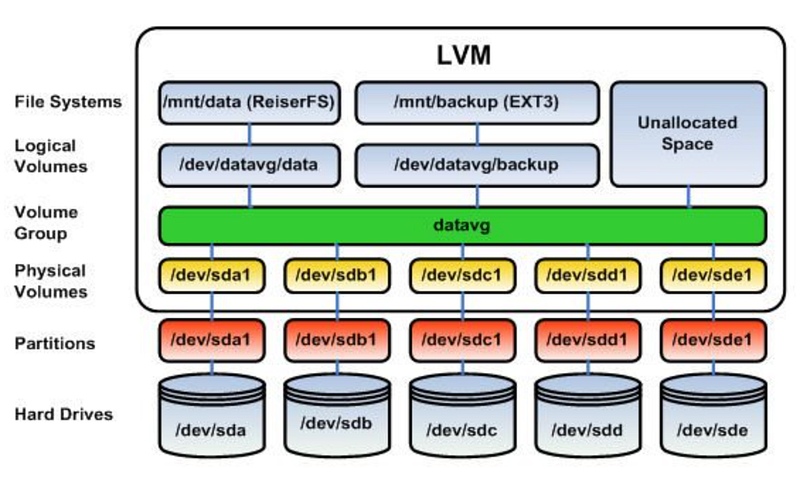
Concept: Fundamentally what you are doing is starting at the bottom of the picture below (with your independent hard-drives; 3x XS70 4TB M.2 NVMe SSDs in our case) and working your way up towards the top of the picture (where you will have a large Volume Group that pools all the storage together).
Read all instructions available at https://christitus.com/lvm-guide/ and watch his video (a few times if required). Other useful videos are Learn Linux TV and David Dalton.
Install lvm:
sudo apt install lvm2
sudo apt install btrfs-progs
Check your current disk space usage:
df -hCheck partitions and volumes. The physical hard drives (M.2 NVMe SSDs) will be listed something like nvme0n1 and the partition of this physical drive will be something like nvme0n1p1 (if present). Currently only the boot drive is partitioned.
sudo lsblkAs your new M.2 SSDs are likely not yet partitioned so you will need to make a 100% partition on each before continuing (btrfs). The previously run sudo lsblk will have confirmed whether there is an existing partition available and if not it would at least inform you of the <identifier> for the physical hard drive you are partitioning.
sudo fdisk /dev/
m (to see the full guide)
g (new GPT partition table)
n (add new partition)
Enter, Enter, Enter (all default values)
w (write and save)

sudo lsblk
(you will now see nmve0n1p1; the new partition)

sudo mkfs.btrfs /dev/

df -h (to check all physical hard drives have partitions)
Repeat the step above for each of your M.2 NVMe SSDs; each needs their own partition.
Looking back at the LVM graphic (above), you will see we have our actual hard drives, each with a partition, and now we are ensuring that each partition has a Physical Volume. Check for existing Physical Volumes:
sudo pvscanType df -h to note the file system of the second hard drive (if has already been mounted) If your hard drives have not been mounted, use sudo lsblk. It should be something like /dev/nvme0n1p1.
Warning: Creating a Physical Volume (PV) will wipe all data on it. Make sure you select the correct partition!
// Repeat the following step for each partition
sudo pvcreate /dev/nvme0n1p1

('y' to wipe it; nothing is there since it is new)
Working up the LVM graphic, we can now add all of the Physical Volumes into a single Volume Group. Check for existing Volumes Groups (VG):
sudo vgscanAs we are setting up LVM for the first time, we will need to create a new VG. nvmevg0 is the name being create and it is using /dev/nvme0n1p1, /dev/nvme1n1p1 and /dev/nvme2n1p1.
sudo vgcreate nvmevg0 /dev/nvme0n1p1 /dev/nvme1n1p1 /dev/nvme2n1p1To make it easier to understand, we will check what we created and how much data it has to allocate:
sudo vgdisplayFinally we want to add the VG to a Logical Volume (LV). We can check for any existing LVs but it will likely return as empty (there are no LVs):
sudo lvscanAgain, since it is a new setup, there is no LV. Time to create a LV:
sudo lvcreate -l 100%FREE nvmevg0 -n nvmelv0There is an option to create a striped logical volume with sudo lvcreate -l {value} -i 3 -I 128k nvmevg0 -n nvmelv0 but striping makes storage expansion (adding more M.2 storage) impossible. Only run this command if you have maxed out your storage and do not ever plan to use an expansion card.
{value}— The value of data that you want to use (100%FREEwill use all available space)-i 3— Number of stripes (the numbers of disks needed to be used for stripes; ie: 3 x 4TB)-I 128k— Size of a single stripe
Final scan to see the newly created and format LVM setup:
sudo lvscanNow that we have an “ACTIVE” LV (/dev/nvmevg0/nvmelv0) to use as a combined storage, we will need to mount it and ensure it remains mounted automatically:
// Format the LV into btrfs
sudo mkfs.btrfs /dev/nvmevg0/nvmelv0

// Find the UUID (copy the UUID for use shortly)
sudo blkid /dev/nvmevg0/nvmelv0

// Create where you want to mount the LV ( is up to you eg: /data4)
sudo mkdir /

// Open /fstab to add the LV (to remain mounted automatically)
sudo nano /etc/fstab

//Add the following line ( is the UUID from the blkid command):
UUID= /data4 btrfs defaults 0 0

(exit nano; CTRL+X, 'y', enter)

// Mount the LV
sudo mount -a
Now you can do a final confirmation that the storage is setup correctly:
df - hKubernetes Setup
Concept: Your BM server has now been configured to a point that it has a solid foundation to run applications and services. The next step is to configure the server so that it is capable of running a THORNode. To do this, Kubernetes needs to be install, configured and optimised for THORNode operations. As was previously stated, this guide will use k8s (MicroK8s) as the Kubernetes client.
Microk8s
Install microk8s:
# Check for the latest version of microk8s (1.33 in this example)
sudo snap install microk8s --classic --channel=1.33/stable
Confirm installation:
sudo microk8s status
sudo microk8s kubectl get nodes
Enable add-ons (dns, hostpath-storage, metrics-server):
sudo microk8s enable dns hostpath-storage metrics-server metallbdns — is required for hostnames between pods, it is important that this is installed before the first namespace/pod is created on the server.
hostpath-storage — is required to put pod storage on host NVMe.
metrics-server — is required to run kubectl top node.
metallb — is required to assign IP to specific nodes.
metallb will prompt to enter an IP range for MetalLB, enter any place-holder IP to be replaced later (1.2.3.4/32). Wait for MetalLB is enabled.
Kube Environment Configuration
This configuration allows the kube client and tools (such as k9s) to interact with our kube node/cluster.
mkdir ~/.kube

// Export Kube Config
sudo microk8s config > ./.kube/config

// Edit bashrc
nano .bashrc
Install kubetcl:
sudo snap install kubectl --classicAdd the following content in .bashrc and save file:
# Config for K9s
export KUBECONFIG=~/.kube/config
# Use nano instead of vi as default editor
export KUBE_EDITOR="nano"
# Autocomplete kubectl
source <(kubectl completion bash)
// Reload bashrc to apply the changes to the current session
source .bashrcInstall k9s Console
k9s is a simple and easy to use console to monitor/interact with the pods of our THORNode cluster (sudo snap install k9s does not work).
// Go to Home Directory
cd

// Download k9s from their GitHub (check for latest version)
wget https://github.com/derailed/k9s/releases/download/v0.50.4/k9s_Linux_amd64.tar.gz

// Extract the downloaded k9s file
tar -xvzf k9s_Linux_amd64.tar.gz

// Move k9s to Binary folder
sudo mv k9s /bin

// Clean Up the unneccessary extra files
rm LICENSE README.md k9s_Linux_amd64.tar.gz

// Open k9s to explore
k9s

// To close k9s
Ctrl+C
For troubleshooting:
// Get Environment Info (Config and Log files location)
k9s info
Note: “ERR refine failed error=”Invalid kubeconfig context detected” indicates that the KUBECONFIG variable was not found.
Setup StorageClass:
StorageClass indicate where Microk8s will store pods storage on our BM server; this is our newly created LVM storage.
Prepare StorageClass object for NVMe Raid:
cd ~
mkdir mk8sconfig
nano mk8sconfig/nvme-hostpath-sc.yaml
Copy the following content into the nvme-hostpath-sc.yaml:
# nvme-hostpath-sc.yaml
kind: StorageClass
apiVersion: storage.k8s.io/v1
metadata:
  name: nvme-hostpath
provisioner: microk8s.io/hostpath
reclaimPolicy: Delete
parameters:
  pvDir: /data4
volumeBindingMode: WaitForFirstConsumerpvDir:is the place you mounted your LV storage (eg/data4)
Create StorageClass:
kubectl apply -f mk8sconfig/nvme-hostpath-sc.yaml

// Confirm creation of new StorageClass
kubectl get storageclass
Set Default StorageClass:
// Display StorageClass
kubectl get storageclass

// Set Default
kubectl patch storageclass microk8s-hostpath -p '{"metadata": {"annotations":{"storageclass.kubernetes.io/is-default-class":"false"}}}'
kubectl patch storageclass nvme-hostpath -p '{"metadata": {"annotations":{"storageclass.kubernetes.io/is-default-class":"true"}}}'

// Confirm the new Default
kubectl get storageclass
WireGuard Proxy
Concept: Holistically what you are trying to achieve is to setup a new Virtual Machine (VM), via a cloud provider (like DO or AWS etc), to act as the proxy for your BM node which will be connected together via a WireGuard (VPN) tunnel. This will use the randomly assigned VM static IP in order to hide your actual IP and hence hide your physical location behind the proxy. Incoming traffic will be routed from the VM proxy to the BM node but the node will use your local internet connection to download/sync the chain-daemons etc; this is why it is important to have 1GPBS internet for the BM server.
D5 Sammy’s guide is great if you know what you are doing but we found the linked DO WireGuard guide to be (unsurprisingly) more comprehensive. To remove as much potential for user error, we stuck with the variables provided by the guide (eg: wg0 and 10.8.0.1/24 etc). Once we confirmed the service was working, we changed the variables to something less obvious and more unique to our connection (always keep ’em guessing!).
As a very general rule, pay very close attention to the exact IP being asked of you by the guide (eg: 1.8.0.0 or 1.8.0.1 or 1.8.0.2 etc in the wg0.conf). This might feel obvious but we misplaced a single, final digit (putting .1 instead of .0) and it took a lot of focus and frustration to find and fix it. Further more, the subnet (ie: 1.8.0.1/24 or 1.8.0.1/32) is important, ensure you allocate the correct subnet while setting up WireGuard.
Don’t run sudo systemctl <command> [email protected] (commands being enable, start, status, restart, reload etc) until the very end of the WireGuard setup. Until you have everything finished and working, just use sudo wg-quick up wg0 (to bring up the service) or sudo wg-quick down wg0 (to bring down the service). This will allow you to keep editing and changing the wg0.conf file (while the network connection is down) without having to reload/restart the service. Once you have a good connection (which you can see by running sudo wg and witnessing the “Latest handshake” and matching the “transfer” between the Proxy and the BM) you can bring the service down, update all of the variables slowly/deliberately and then bring up and test the connection again. If it is working as advertised then you can run the 3 sudo systemctl <command> [email protected] commands and have it automated.
VM Proxy Setup
Once you have created and setup a basic VM (the cheapest is fine; 512MB memory, 10GB SSD storage,1 vCPU and backup protection = $6USD/month), update the OS:
sudo apt update
sudo apt upgrade
Note: If prompted for merging, select the first option, “install the package maintainer’s version”.
Install Networking and Monitoring Tools (these are not mandatory but may come in handy while troubleshooting; chose the ones you want or install as required):
sudo apt install nmap net-tools netcat iperf3 speedtest-clinmap— Network Mappernet-tools— Controlling network subsystemnetcat—Port Scanningiperf3— Used to test latency between Proxy and BMspeedtest-cli— Test the Up/Down speed of the Proxy and/or BM
Install WireGuard:
sudo apt install wireguardRestart to reload services and new kernel if required:
sudo rebootGenerate WireGuard Private and Public KeyPairs:
// Generate KeyPair for WireGuard Server (The VM Proxy acting as the WireGuard Server)
wg genkey | sudo tee /etc/wireguard/wg0server.key
sudo chmod go= /etc/wireguard/wg0server.key
sudo cat /etc/wireguard/wg0server.key | wg pubkey | sudo tee /etc/wireguard/wg0server.pub

// Generate KeyPair for THORChain Node (The BM server acting as the WireGuard Client)
wg genkey | sudo tee /etc/wireguard/wg0node.key
sudo chmod go= /etc/wireguard/wg0node.key
sudo cat /etc/wireguard/wg0node.key | wg pubkey | sudo tee /etc/wireguard/wg0node.pubNote: The VM Proxy that is running WG isserverand the BM isnode. The Private Key ends in.keyand the Public Key ends in.pub. You can save these Keys in a secure Note as you go (deleting after it is configured) with appropriate titles/explanations to help later.
Create Config File for Server
sudo nano /etc/wireguard/wg0.confCopy the following contents into wg0.conf:
[Interface]
Address = 10.8.0.1/24
PrivateKey =
ListenPort = 51820
SaveConfig = false

PostUp = ufw route allow in on wg0 out on eth0
PostUp = iptables -t nat -I POSTROUTING -o eth0 -j MASQUERADE
PreUp = iptables -A FORWARD -i eth0 -o wg0 -m conntrack --ctstate ESTABLISHED,RELATED -j ACCEPT
PreUp = iptables -A FORWARD -i wg0 -o eth0 -m conntrack --ctstate ESTABLISHED,RELATED -j ACCEPT
PreUp = iptables -A FORWARD -i eth0 -o wg0 -p tcp --syn --match multiport --dports 6040,5040,27146,27147 -m conntrack --ctstate NEW -j ACCEPT
PreUp = iptables -t nat -A PREROUTING -i eth0 -p tcp --match multiport --dports 6040,5040,27146,27147 -j DNAT --to-destination 10.8.0.2
PreUp = iptables -t nat -A POSTROUTING -o wg0 -p tcp --match multiport --dports 6040,5040,27146,27147 -d 10.8.0.2 -j SNAT --to-source 10.8.0.1
PreDown = ufw route delete allow in on wg0 out on eth0
PreDown = iptables -t nat -D POSTROUTING -o eth0 -j MASQUERADE
PostDown = iptables -D FORWARD -i eth0 -o wg0 -m conntrack --ctstate ESTABLISHED,RELATED -j ACCEPT
PostDown = iptables -D FORWARD -i wg0 -o eth0 -m conntrack --ctstate ESTABLISHED,RELATED -j ACCEPT
PostDown = iptables -D FORWARD -i eth0 -o wg0 -p tcp --syn --match multiport --dports 6040,5040,27146,27147 -m conntrack --ctstate NEW -j ACCEPT
PostDown = iptables -t nat -D PREROUTING -i eth0 -p tcp --match multiport --dports 6040,5040,27146,27147 -j DNAT --to-destination 10.8.0.2
PostDown = iptables -t nat -D POSTROUTING -o wg0 -p tcp --match multiport --dports 6040,5040,27146,27147 -d 10.8.0.2 -j SNAT --to-source 10.8.0.1
# Node
[Peer]
PublicKey =
AllowedIPs = 10.8.0.2/32
Variables:
- Replace
<wg0server.key>and<wg0node.pub>with the long Alpha-Numeric keys provided before. - IPv4 Range should be randomly selected by yourself. Replace
10.8.0.xwith something of your choosing; refer to DigitalOcean Guide for the available ranges. eth0is the most common Ethernet Interface but yours may be labelled differently.
Enable IP Forwarding to ensure you BM server can use the VM proxy’s public IP:
sudo nano /etc/sysctl.conf

// Unhash the following (to allow IPv4 forwarding)
net.ipv4.ip_forward=1

// Apply Changes
sudo sysctl -p
Bring up WireGuard manually:
sudo wg-quick up wg0Note: If you already have anufwsetup on your BM server, you will need to add a rule to allow connections on51820. Reminder that you need to Disable and then Enable the Firewall for it to come into effect.
BM Server Setup
Back on the BM Server, configure WireGuard to connect to the VM Proxy that we just created.
Install WireGuard on the BM server:
sudo apt install wireguardInstall the WireGuard dependency:
sudo apt install openresolvCreate the wg0.conf file for the BM server:
sudo nano /etc/wireguard/wg0.confCopy the following contents into wg0.conf:
[Interface]
Address = 10.8.0.2/24
PrivateKey =
DNS = 9.9.9.9
SaveConfig = false

[Peer]
PublicKey =
EndPoint = :51820
AllowedIPs = 10.8.0.0/24
PersistentKeepalive = 25
Variables:
- Replace
<wg0node.key>and<wg0server.pub>with the long Alpha-Numeric keys provided before. - IPv4 Range must match those originally configured in the VM proxy.
<Proxy Service Public IP>is the Public IP for the VM proxy. The Proxy Service Public IP is the IP you use to access the VM (eg: ssh root@Public IP).
Bring up WireGuard manually:
sudo wg-quick up wg0Check for a successful connection. You will run this command both on the BM server and the VM proxy. Both should list a ‘Latest Handshake’ and the data transfer should match.
sudo wg showFrom your BM server, conduct a Ping Test to your VM proxy:
ping 10.8.0.1Now that you have established a connection, you can bring down the service and slowly change all the variables:
sudo wg-quick down wg0After you have changed and tested all of the components that you want, you can bring WireGuard back up and set as an automatic service. Start by running all of these command on the VM proxy and then do the BM server:
sudo systemctl enable [email protected]
sudo systemctl start [email protected]
sudo systemctl status [email protected]
On both the VM proxy and the BM server, setup the firewall configuration (these must be done in this order):
sudo ufw reset
sudo ufw default allow incoming
sudo ufw default allow outgoing
sudo ufw allow in on eth0 to any port 22
sudo ufw allow in on eth0 to any port 5040
sudo ufw allow in on eth0 to any port 6040
sudo ufw allow in on eth0 to any port 27146
sudo ufw allow in on eth0 to any port 27147
sudo ufw allow in on eth0 to any port 51820
sudo ufw deny in on eth0
sudo ufw enable
sudo ufw status numbered
Note: ufw being enabled is mandatory on the WireGuard proxy. PostUp = ufw route allow... will silently do nothing if ufw is disabled and this will break the forwarding rules. Your node will not pass the health checks (http://<PublicIP>:27147/health?).
Try connecting another SSH Session before closing the current one to confirm that you can still access the VM proxy and BM server after the firewall changes.
From a seperate computer, test that the Ports:
nmap -Pn -p 22,80,5040,6040,8080,26656,26657,27146,27147,51820 After everything is configured the following ports should be Open: 22, 5040, 6040, 27146, 27147, 51820, everything else would be Filtered. If it does not report like this (the Ports may need an active service to report ‘Open’, you can check the individual Ports:
// On BM Server (replacing  with 22, 5040, 6040. 27146, 27147 or 51820)
nc -l

// On the independent computer ( being the forwarded proxy IP)
nc
Multiple Nodes
Each BM node will require its own Static Public IP and hence its own VM proxy. All of the instructions are the same but the connections are managed with wg1.conf and wg2.conf that have their own unique variables (IPv4 range, Private/Public Key pairs and wg1 labelling).
Repeat the full guide to create a WireGuard Proxy for each Validator Node.
Note: If the second WG service was configured in the addresspool before the WireGuard service is brought up (sudo wg-quick up wg1) on Microk8s, the platform becomes unstable and every pod will die. They will all recover automatically (in a few minutes) but you should monitor their recovery via k9s and intervene where and when required. D5 Sammy has some more guidance in Discord on how to overcome this if it becomes an issue.Configure MetalLb on BM server
Configure the WireGuard IP in metallb:
kubectl edit ipaddresspool default-addresspool --namespace=metallb-systemAdd the IP to the IP list:
spec:
  addresses:
  - 10.8.0.2/32
Confirm Change
kubectl describe ipaddresspool default-addresspool --namespace=metallb-systemMultiple IPs can be added to the IP list; repeat for each VPN Tunnel.
Create and configure a THORNode
Concept: All the previous steps were required to get to the current step of being able to clone the THORChain Gitlab Repository and start to create your THORNode. https://docs.thorchain.org/thornodes/overview still remains the reference document for this and all commands from here will be followed (with some small adjustments like not using make set-ip-address).
Create THORNode Shared Chains Daemons
The intention of this stage of the setup is to be able to run multiple validator nodes on a bare-metal server. To save on resources, we want to be running only one instance of some chain daemons and share it with every node, instead of every node running it own instance of every chain daemons. There is no advantage to running 4 copies of the ETH chain on our server.
For this setup, we chose to share everything that we could. If you are definitely only running a single BM node, then you do not need a c0 and n1 structure, it can all be together on n1.
Prepare a new directory for the shared daemons (c0=Chain Daemon 0):
cd ~
mkdir c0
cd c0
git clone https://gitlab.com/thorchain/devops/node-launcher.git
cd node-launcher
git checkout master
git config pull.rebase true
git config rebase.autoStash true
The git config stuff at the bottom is required for BM operations as you do not want your mandatory changes to be reversed with every upgrade.Install tools and the make dependency:
# Install the `make` and dependencies first:
sudo apt install make -y jq

# Install the tools:
make helm
make helm-plugins
make tools
Note: You will likely get a warning like this:
`WARNING: Kubernetes configuration file is group-readable. This is insecure. Location: /home/<Username>/.kube/config`
#Update the permissions
chmod 600 /home//.kube/config

#Verify the permissions
ls -l /home//.kube/config

(Google/ChatGPT the response to ensure it is readable and writtable to only the owner)
Note: You might get an error like this:
=> Installing Loki Logs Management Release “loki” does not exist. Installing it now. Error: execution error at (loki/templates/single-binary/statefulset.yaml:44:28): Please define loki.storage.bucketNames.chunks make: *** [Makefile:173: install-loki] Error 1
If you get the Loki Logs error:
nano loki/values.yaml

#Add the following:
loki:
  auth_enabled: false
  commonConfig:
    replication_factor: 1
  storage: # <--- ADD THIS ENTIRE BLOCK
    bucketNames:
      chunks: loki-chunks
      ruler: loki-ruler
      admin: loki-admin
  schemaConfig:
Verify all pods are healthy:
k9s

// If you are not running k9s, this will also work:
kubectl get pods -A
Change Mainnet Config to Install only the Chains that you want to share:
cd ~/c0/node-launcher

// Edit Daemons Configs
nano thornode-stack/mainnet.yaml
Disable the Chains you don’t want to share by setting the value to false. In our example, we want to share them all. Historically you could not share UTXO Chains but you can now.
binance-daemon:
  enabled: true
bitcoin-daemon:
  enabled: true
litecoin-daemon:
  enabled: true
bitcoin-cash-daemon:
  enabled: true
ethereum-daemon:
  enabled: true
dogecoin-daemon:
  enabled: true
gaia-daemon:
  enabled: true
avalanche-daemon:
  enabled: true
binance-smart-daemon:
  enabled: true
Run Make Install to create the shared chain daemons:
NAME=c0 TYPE=daemons NET=mainnet make installVerify all shared chain daemon pods are healthy:
k9s

// If you are not running k9s, this will also work:
kubectl get pods -A
Sync ETH Beacon Chain from Snapshot
The Ethereum blockchain is by far the slowest to spin up; taking 1-2 weeks. D5 Sammy has a spare ETH daemon running for redundancy but we elected to conserve the CPU thread resources and use the ETH Beacon Chain from snapshot:
When setting up fresh, after make install ETH beacon will start to sync. Find a trusted Ethereum Beacon Chain checkpoint sync endpoint. Ensure you select from “Mainnet” (eg: we chose https://mainnet-checkpoint-sync.attestant.io/).
cd node-launcher/ethereum-daemon
sudo nano ethereum-daemon/values.yaml
Insert your chosen ETH Beacon Chain checkpoint into beaconCheckpointSyncUrl:
beaconCheckpointSyncUrl: "https://mainnet-checkpoint-sync.attestant.io/"

CTRL+X (to exit), Y (to save), Enter (keep the same name)
Push the changes to the active ETH daemon:
cd ~/c0/node-launcher
NAME=c0 TYPE=daemons NET=mainnet make install
Verify that the ETH Beacon chain is syncing from the snapshot:
make logs --> ETH Daemon --> Beacon ChainOnce it is fully sync’d you want to confirm that the Slot and State Root are correct. Compare the figures against an Ethereum Explorer of your choosing.
make verify-ethereumInstall the actual THORNode
For this setup we will create a distinct git working directory for each validator node ( n1=Node 1). Each validator will need it’s own directory (n2, n3 etc). Again, if you are definitely only running a single BM node, all the chain daemons and node services will be in this directory.
Prepare git folder:
cd ~
mkdir n1
cd n1
git clone https://gitlab.com/thorchain/devops/node-launcher.git
cd node-launcher
git checkout master
git config pull.rebase true
git config rebase.autoStash true
git config is required for the same considerations as with shared daemons.Change the thornode-stack/mainnet.yaml to install only the Chains that were not previously created inc0.
cd ~/n1/node-launcher

// Edit Daemons Configs
nano thornode-stack/mainnet.yaml

# All chain daemons will be `false` if they are covered in `c0`:
binance-daemon:
  enabled: false
bitcoin-daemon:
  enabled: false
litecoin-daemon:
  enabled: false
bitcoin-cash-daemon:
  enabled: false
ethereum-daemon:
  enabled: false
dogecoin-daemon:
  enabled: false
gaia-daemon:
  enabled: false
avalanche-daemon:
  enabled: false
binance-smart-daemon:
  enabled: false
If you are using c0 to run all of your Chain daemons, add the following values before the `true` / `false` selections in thornode-stack/mainnet.yamlfile. Ensure that they are effectively tabbed because bifrost is combined with thornodenow:
thornode:
  statesync:
    auto: false
    snapshotInterval: 0
  versions:
    - height: 0
      image: registry.gitlab.com/thorchain/thornode:mainnet-3.6.1@sha256:a40c63b1d2c3523aeb9bc2a42f92094ffddce1ffd00d5e888863302448f8cace
      containers:
        bifrost: registry.gitlab.com/thorchain/thornode:mainnet-3.6.1@sha256:a40c63b1d2c3523aeb9bc2a42f92094ffddce1ffd00d5e888863302448f8cace
    # Add chain versions here for future scheduled upgrades and historical sync
# point bifrost at shared daemons
  bifrost:
    bitcoinDaemon:
      mainnet: bitcoin-daemon.c0.svc.cluster.local:8332
    # If sharing via IP address:
# mainnet: http://192.168.111.222:27147
    litecoinDaemon:
      mainnet: litecoin-daemon.c0.svc.cluster.local:9332
    bitcoinCashDaemon:
      mainnet: bitcoin-cash-daemon.c0.svc.cluster.local:8332
    dogecoinDaemon:
      mainnet: dogecoin-daemon.c0.svc.cluster.local:22555
    ethereumDaemon:
      mainnet: http://ethereum-daemon.c0.svc.cluster.local:8545
    gaiaDaemon:
      enabled: true
      mainnet:
        rpc: http://gaia-daemon.c0.svc.cluster.local:26657
        grpc: gaia-daemon.c0.svc.cluster.local:9090
        grpcTLS: false
    avaxDaemon:
      mainnet: http://avalanche-daemon.c0.svc.cluster.local:9650/ext/bc/C/rpc
    env:
      BIFROST_CHAINS_BSC_RPC_HOST: http://binance-smart-daemon.c0.svc.cluster.local:8545/
      BIFROST_CHAINS_BSC_BLOCK_SCANNER_RPC_HOST: http://binance-smart-daemon.c0.svc.cluster.local:8545/
      BSC_HOST: http://binance-smart-daemon.c0.svc.cluster.local:8545/

# All chain daemons will be `false` if they are covered in `c0`:
binance-daemon:
  enabled: false
bitcoin-daemon:
  enabled: false
litecoin-daemon:
  enabled: false
bitcoin-cash-daemon:
  enabled: false
ethereum-daemon:
  enabled: false
dogecoin-daemon:
  enabled: false
gaia-daemon:
  enabled: false
avalanche-daemon:
  enabled: false
binance-smart-daemon:
  enabled: false
base-daemon:
  enabled: false
xrp-daemon:
  enabled: false
cardano-daemon:
  enabled: false
BASE and XRP are newer chain additions and treated differently when linking to a shared chain daemon:
// Edit thornode/values.yaml to include BASE and XRP shared daemons
nano thornode/values.yaml

# base chain
BIFROST_CHAINS_BASE_DISABLED: "false"
BIFROST_CHAINS_BASE_RPC_HOST: http://base-daemon.c0.svc.cluster.local:8545

# xrp chain
BIFROST_CHAINS_XRP_DISABLED: "false"
BIFROST_CHAINS_XRP_RPC_HOST: http://xrp-daemon.c0.svc.cluster.local:51234
Disabling leveldb_compact_on_init skips database compaction at startup, allowing faster boot times and reduced downtime, with compaction handled gradually during runtime instead. This is important to help reduce Slashes accrued when manipulating nodes that are active.
// Add instructions to disable LevelDB compact on init
nano thornode/values.yaml

# provide custom environment variables to override config defaults:
# https://gitlab.com/thorchain/thornode/-/blob/develop/config/default.yaml
env:
  BIFROST_CHAINS_BTC_SCANNER_LEVELDB_COMPACTION_TABLE_SIZE_MULTIPLIER: "1"
  BIFROST_CHAINS_ETH_SCANNER_LEVELDB_COMPACT_ON_INIT: "false"
  BIFROST_CHAINS_GAIA_SCANNER_LEVELDB_COMPACT_ON_INIT: "false"
  BIFROST_CHAINS_DOGE_SCANNER_LEVELDB_COMPACT_ON_INIT: "false"
  BIFROST_CHAINS_BTC_SCANNER_LEVELDB_COMPACT_ON_INIT: "false"
  BIFROST_CHAINS_AVAX_SCANNER_LEVELDB_COMPACT_ON_INIT: "false"
  BIFROST_CHAINS_BSC_SCANNER_LEVELDB_COMPACT_ON_INIT: "false"
  BIFROST_CHAINS_BNB_SCANNER_LEVELDB_COMPACT_ON_INIT: "false"
  BIFROST_CHAINS_LTC_SCANNER_LEVELDB_COMPACT_ON_INIT: "false"
  BIFROST_CHAINS_XRP_SCANNER_LEVELDB_COMPACT_ON_INIT: "false"
  BIFROST_CHAINS_BASE_SCANNER_LEVELDB_COMPACT_ON_INIT: "false"
Amending the Binance-Smart-Daemon Port
This step is only required if you are sharing chain daemons via IP. When sharing chain-daemon RPCs between servers via IP address, each chain-daemon requires their own unique Port. ETH and BSC are currently sharing Port 8545 which will cause issues. To solve this we will amend the BSC port to be 18545. Start with the binance-smart-daemon/values.yaml and then amend the thornode-stack/mainnet.yaml:
cd ~/c0/node-launcher

//Edit the Daemons Configs by changing 8545 to 18545
nano binance-smart-daemon/values.yaml

service:
  type: ClusterIP
  port: 18545

//Edit thornode-stack/mainnet.yaml
nano thornode-stack/mainnet.yaml

env:
      BIFROST_CHAINS_BSC_RPC_HOST: http://192.168.111.222:18545/
      BIFROST_CHAINS_BSC_BLOCK_SCANNER_RPC_HOST: http://192.168.111.222:18545/
      BSC_HOST: http://192.168.111.222:18545/
Set loadBalancerIP parameter for Gateway
These steps will force MetalLB to assign a specific IP to this validator. This is required for the node to receive from the proxy public IP (from the WireGuard setup).
nano gateway/templates/service.yamlAdd the following values in the section metadata (under annotations):
metadata:
  annotations:
    # MetalLb - WireGuard Setup
    metallb.universe.tf/loadBalancerIPs: 10.8.0.2
Set External Environment IP for bifrost
This will allow bifrost to broadcast the proxy public IP as the IP to be reached from the other Validators.
nano thornode/templates/cosmosfullnode.yamlHardcode the EXTERNAL_IP value in the section env section (Line 278 onwards) with the Public Proxy IP (<Proxy Public IP>) that was enabled with the WireGuard setup (# out the rest):
env:
  - name: EXTERNAL_IP
    value: ""
#  valueFrom:
#    configMapKeyRef:
#      name: {{ include "bifrost.fullname" . }}-external-ip
#      key: externalIP
Set External Environment IP for THORNode
This will allow thornode to broadcast the proxy public IP as the IP to be reached from other Validators.
nano thornode/templates/cosmosfullnode.yamlHardcode the EXTERNAL_IP value in the section env section (Line 91 onwards) with the Public Proxy IP (<Proxy Public IP>) that was enabled with the WireGuard setup (# out the rest):
env:
  - name: HOME
    value: /home/operator/cosmos
  - name: EXTERNAL_IP
    value: ""
#  valueFrom:
#    configMapKeyRef:
#      name: {{ include "thornode.fullname" . }}-external-ip
#      key: externalIP
Run Make Install to create your THORNode
NAME=n1 TYPE=validator NET=mainnet make installConfirm Pods are starting correctly
k9s

// If you are not running k9s, this will also work:
kubectl get pods -A
Sync thornode from Snapshot
The THORChain blockchain can take a fair amount of time to download. To save time, you can sync thornode from an external snapshot. It is useful to do this every time you churn out to free up disk space. Depending on your Network speeds, it might be worth completing this part in screen as you need to wait for it to complete.
sudo apt update
sudo apt install libxml2 libxml2-utils

make restore-external-snapshot

// Enter your THORNode Name (eg: n1)
// Choose a provider or press ENTER to accept the NineRealms Snapshots
// Select the latest (Highest) Block available, there are multiple snapshots

# Wait for it to download and then extract:
Y (to execute the snapshot)
Confirmation
Before you proceed, you must ensure that all of the chains are completely up-to-date and 100% sync’d.
NAME=n1 TYPE=validator NET=mainnet make statusIt is also a good habit to check the latest block for each chain against the published latest block on an independent blockchain explorer.
Configure THORNode
Concept: docs.thorchain.org details in more detail the full steps and can be followed exactly as described with the exception of the make set-ip-address command.
Confirm all chains are up-to-date:
NAME=n1 TYPE=validator NET=mainnet make statusNote: This will also display your THORNode address.
Use Asgardex Wallet (or similar) to bond in 5 $RUNE to your THORNode. Make sure that you send it from an ultra-secure wallet as this will become the admin wallet that is permanently attached to this THORNode. Ensure you are using bond and not send.
Publicly publish your node keys:
make set-node-keysPublicly publish your node version:
make set-versionThis is the step that is different from the guide and is required when using a proxy IP (WireGuard setup). Replace <name> with the namespace you chose (eg: n1) and <Proxy Public IP> with the Public IP from the WireGuard Proxy:
kubectl exec -it -n -c node thornode-0 -- /kube-scripts/set-ip-address.sh ""Check that you are now “ready” and will be available to churn in on the next churn (assuming enough bond to win that churn’s bond war):
NAME=n1 TYPE=validator NET=mainnet make statusBond in your full bond amount (to that same THORNode address) and wait to be churned in when you are competitive.
Reminder: You are not ‘sending’ your $RUNE bond to the THORNode address, you are ‘bonding’ it in. Asgardex simplifies this for you and hence it is highly recommended for node operations.
Linking multiple BM Servers
Concept: With the addition of XRP, THORChain has integrate new chains to a point where the resource requirements have outgrown the capacity of a single AMD Ryzen 16/32 (core/thread) setup (SOL and other new chains will further complicate this). It is much cheaper to simply buy another identical setup before making the leap to an AMD EPYC setup (assuming you can even find an AMD EPYC to purchase). These two BM servers can be easily linked so that they can share resources between servers. It might be tempting to go for Kube FQDN (common cluster) sharing but it doesn’t work for the THORChain architecture of this guide. Share via exposing the IP for a specific service, it works, it is easy.
Exposing IP
In order to share resources across servers, we need to expose the IP for a specific daemon by setting an ‘External IP’ so that it is reachable via LAN IP (ie: allowing that chain daemon RPC to be reachable by any computer on the Local Area Network).
kubectl patch svc -n -p '{"spec":{"externalIPs":[""]}}'<chain-daemon>: The service you want to share (ie: ethereum-daemon)<namespace>: The location of the<chain-daemon>(ie:c0)<Server LAN IP>: The internal IP assigned (and earlier reserved on Router) for the server (ie:192.168.xx.yy)
After you have run this, you can check to confirm the External IP is now exposed on your <Server LAN IP>:
kubectl get services -n The chain-daemon that you exposed via IP can now be used by any THORNode, running on any Server connected to your LAN. You will need to point the appropriate bifrost at the shared daemon (in the thornode-stack/mainnet.yaml) by adding the following:
ethereumDaemon:
mainnet: http://<192.168.xx.yy>:8545<192.168.xx.yy>will be replaced with your specific exposed IP.
Repeat the steps above to expose all the chain-daemons that you want to share (as long as they are exposed via a unique port number).
Troubleshooting
There are far too many issues that can occur in the process of setting up your BM node. Each of the previous guides (linked at the start) provide a good list (and explanation) of some common issues and ways to fix or troubleshoot them.
Read through the previous guides, especially D5 Sammy, for common advice and if still stuck then ask #Bare-metal-nodes Discord Channel and we will attempt to update this guide with the most common issues. It is a good practice to search for keywords on the issue prior to asking as it might already by answered.
Personalisation (Optional)
Concept: All previous steps were mandatory for your BM node setup (except those specifically labelled as “Optional”) but the following steps are for personalisation. Of note, Scorch and Hildisvíni Óttar used oh-my-zsh (.zsh) but D5 Sammy used .bash; it is a personal preference (we chose .bash).
Edit .bashrc:
nano ~/.bashrc

// Add the following at the bottom (under your previous additions):
alias ms='NET=mainnet NAME=n1 TYPE=validator TC_BACKUP=0 make status'
alias c0='cd ~/c0/node-launcher'
alias n1='cd ~/n1/node-launcher'

//Reload .bashrc
source ~/.bashrc
Backing up THORNode
Concept: Backing up and securing of your BM node is largely dictated by the risk tolerance of the node operator. In saying this, the following are the minimum backup and security measures that must be followed by all BM node operators.
The first step to backing up your node is to physically secure the Mnemonic and Password. We prefer to save them in an ultra-secure storage facilities that is not easily accessible and at a different location to the BM node.
// Physically save your Mnemonic and secure it like you have your wallet seed-phrase
NAME=n1 TYPE=validator NET=mainnet make mnemonic

// Physically save your Password and secure safely (similar to the mnemonic)
NAME=n1 TYPE=validator NET=mainnet make password
Your thornode and bifrost backups will need to be secured digitally:
mkdir ~/BackupN1

// Generate a thornode Backup (This is a backup of thornode, it only needs to be done once)
NAME=n1 TYPE=validator NET=mainnet SERVICE=thornode make backup

// The backup function will display the path to the backup folder
cp ./backups/n1/thornode/2023-XX-XX/thornode-16XXXXXXXX.tar.gz ~/BackupN1/

// Generate a bifrost Backup (This is a backup of the current bifrost, if migrating it must be since the last churn)
// Note: There is a new feature that automatically fetches the latest bifrost key file for all active nodes.
NAME=n1 TYPE=validator NET=mainnet SERVICE=bifrost make backup

// The backup function will display the path to the backup folder
cp ./backups/n1/bifrost/2023-XX-XX/bifrost-16XXXXXXXX.tar.gz ~/BackupN1/

// Save ~/BackupN1 offline; can send to laptop first to the store remotely.
[Your Laptop] scp -r @:~/BackupN1 ~
The combination of ~/BackupN1/ and the securely stored Mnemonic+Password is all we need to restore our Validator from scratch (if necessary).
Reminder: You are MUCH more likely to have your BM node (or wallet really) compromised by someone getting access to your backups or recover phrases (mnemonics) than some super hacker getting into your system. There is lots on the line so invest an appropriate amount into personal security and adequate remote secure storage!
THORNode Maintenance
Concept: Getting your BM node up and running is only the beginning, there is still heaps of (near daily) work required to keep your BM node running correctly. This section will detail how to maintain, update, provide governance to the TC protocol and other generic node operators actions that will be expected of you.
Useful THORNode commands
// To see the full list of `make` commands
make help

// To debug or check on specific chain daemons
make logs

// If you want to keep all chain daemons and services but have a new thornode
make recycle

// When a daemon/pod/service is struggling or stuck
make restart

(This just kills and restarts the pod; safe to use)

// When a daemon/service is corrupted or needs a fresh start
make reset

(This command is destructive and will wipe all data and start fresh; use cautiously)

// To provide governance on the THORChain network
make mimir

(You will be voting on something and need the mimir Key and Value)

// To anonymously ask questions in #mainnet or #devops
make relay

// To pause the global THORChain network for 1hr (suspected nefarious behaviour)
make pause

// To resume the global THORChain network after a 'make pause' (all clear)
make resume
Updating Shared Chains
cd ~/c0/node-launcher
git checkout master
git pull --rebase --autostash
NAME=c0 TYPE=daemons NET=mainnet make install
Updating Validators
If you are only running a single BM node then this step will cover everything required (no need to update shared chains).
cd ~/n1/node-launcher
git checkout master
git pull --rebase --autostash
NAME=n1 TYPE=validator NET=mainnet make update
Rebooting the BM Server
Scaling down Pods prior to rebooting server can help prevent chain corruptions.
// Scale down all Pods
kubectl -n c0 scale deployments --replicas=0 --all
kubectl -n n1 scale deployments --replicas=0 --all
kubectl -n n1 patch cosmosfullnodes thornode -p '{"spec":{"instanceOverrides":{"thornode-0":{"disable":"Pod"}}}}' --type=merge

// Wait for all pods to terminate completely
k9s

sudo shutdown -h now
After you boot-up the BM server, the Pods will need to be scaled back up.
// Scale up all Pods
kubectl -n c0 scale deployments --replicas=1 --all
kubectl -n n1 scale deployments --replicas=1 --all
kubectl -n n1 patch cosmosfullnodes thornode -p '{"spec":{"instanceOverrides":{"thornode-0":{"disable":null}}}}' --type=merge

// Monitor to see they all come back online correctly
k9s

// Complete a final check of the node
n1 (this is if you added the alias; else, cd ~/n1/node-launcher)
ms (this is if you added the alias; else, make status)
Monitoring
The best way to monitor your BM node is via SSH and make status but you can also keep an eye on it while out and about at either https://thornode.network/ or https://thorchain.net/nodes.
Conclusion
This guide was our best attempt to provide a comprehensive ‘paint-by-numbers’ n00b guide for making a BM node. Yes, the required base knowledge is high. Yes, it is a lot harder than centralised cloud provider or participating in a pooled-node. But, no, it is not an insurmountable endeavour. The monthly $$$ savings along are reason enough to go BM but the added decentralisation to THORChain and control over your THORNode are added benefits too!
Our BM nodes would not have been possible if it were not for the insanely generous community members like D5 Sammy, Scorch and Hildisvíni Óttar (plus all those on the #Bare-metal-nodes Discord Channel). Everyone has been extremely helpful and any thanks should be directed towards them. We are just trying to do our best to pay it forward. As such, below are the tip jars that they have advertised on their own guides and is Discord (as usually, check independently before sending $RUNE):
D5 Sammy: thor1xlqrg5prw0x2xva82c8q83kjrgkx66fzmhs5aj
Scorch: thor17ekvgt4jrrdcq4u0th33rlwy7mfxu360fampyy
Any further questions or queries should be fielded in Discord and this guide will be updated. Good luck!