If you are a KuCoin user and want to take the step to go on-chain and explore DeFi on Rujira, there are a few things you will need to get familiar with. The first step is to move your assets onto Rujira so you can start using the products.
To do this, you will need to follow a few key steps:
Setting up a Rujira-compatible wallet
Withdrawing your assets from KuCoin to your own address
Depositing your assets onto Rujira
Exploring and using Rujira products
This step-by-step guide (with videos) will walk you through how to withdraw your assets from KuCoin and get started on Rujira. In this example, we will use Bitcoin as the asset, desktop as the device and Keplr as the wallet, but the process is similar for other assets and wallets.
You will also find more details in this guide about how to withdraw and which assets are supported on Rujira.
⚡️Setting up a Rujira-compatible wallet
To be able to get started with DeFi on Rujira, you will need a Rujira-compatible wallet. If you don’t have one, we recommend using Keplr, as it provides all the necessary functions.
The steps to create a Keplr wallet are:
Download and install the Keplr extension from https://www.keplr.app/get.
Once installed, the Keplr extension should open automatically.
Click “Create new wallet”, then in the new window, select “Create new recovery phrase”.
Read the instructions and, after a few seconds, click “I understood, Show my Phrase”.
Your recovery phrase will appear and you have the choice to choose between 12 or 24 words. The more words a recovery phrase contains, the safer it is. Do not share your recovery phrase with anyone. Write it down or store it securely — this is the only way to regain access to your wallet.
On the next screen, enter two words from your recovery phrase, set a wallet name and password, then click “Next”.
In the next window, select the chain(s) of the asset(s) you want to withdraw from the Centralized Exchange, then click “Save”. Your wallet is now installed and set up.
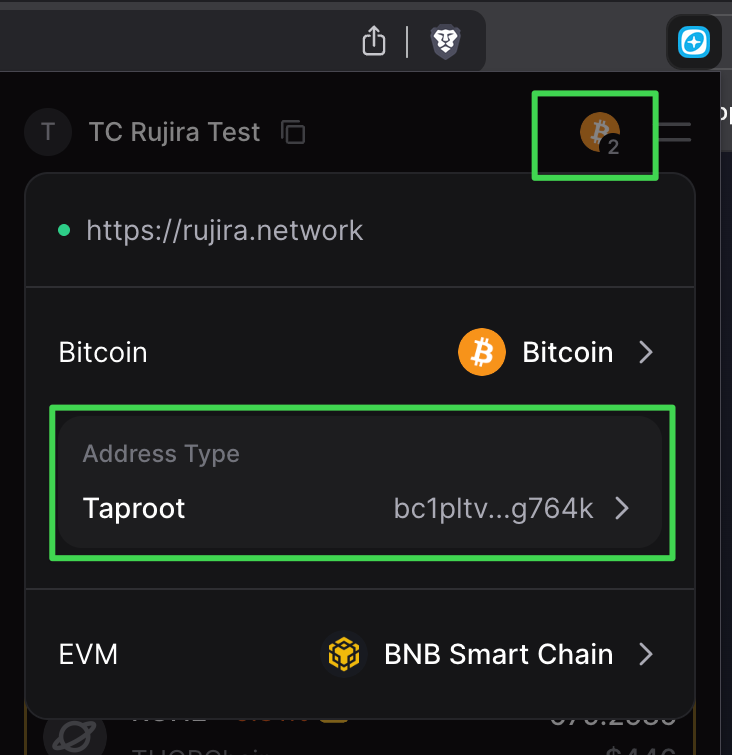
Since Rujira uses Bitcoin’s more secure and modern “Taproot” address. Make sure to enable Taproot in your Keplr wallet extension for future use.
⚡️Withdrawing your assets from the exchange to your own address
Now that your Keplr wallet is set up, the first step in moving your assets from KuCoin to Rujira is to withdraw them to your own wallet address. In this example, we will walk you through how to withdraw Bitcoin (BTC) from KuCoin.
Steps:
Go to kucoin.com/account, and navigate to your Dashboard
In the middle of the screen, press “Withdraw”
Under Select Coin, click on the coin and look for BTC
To be able to fill in the address that we want to send our funds to, we need Bitcoin ‘Taproot’ to be enabled in Keplr Wallet, and then we can open a new tab and go to https://rujira.network/connect
On the Connect page, connect your Keplr wallet if it isn’t connected yet and check the address overview list which is located right under the “Your Connected Wallets”. Select your Bitcoin address, and press the copy icon
Go back to KuCoin and paste the copied address into the Wallet Address/Invoice field
In the Network field, select Bitcoin
Enter the amount of BTC you want to send. Make sure to also select the right account you want to withdraw from. Once ready, press Withdraw. (You can try a smaller test amount first.)
Double-check all the information. Depending on your security settings, you might have to verify the transaction first via either SMS, e-mail, authenticator or password. When you have filled everything in and everything looks okay, press Continue
Once the transaction is confirmed on the Bitcoin network, your funds will arrive at your Bitcoin address. Bitcoin transactions can take a few minutes depending on network congestion.
After some time, return to rujira.network/portfolio
Your BTC is now on your Bitcoin address and it is shown on Rujira in your omnichain portfolio overview. The next step is to deposit it from Bitcoin network to Rujira.
⚡️Depositing your assets onto Rujira
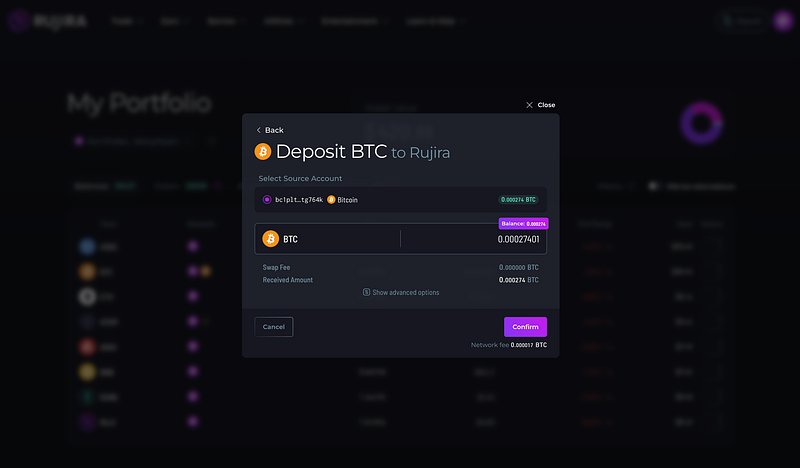
When you have BTC on your Bitcoin ‘Taproot’ address, you can follow the next steps to deposit your BTC onto Rujira. If you want to deposit other assets, you can use the same deposit modal to transfer assets from another chain to Rujira.
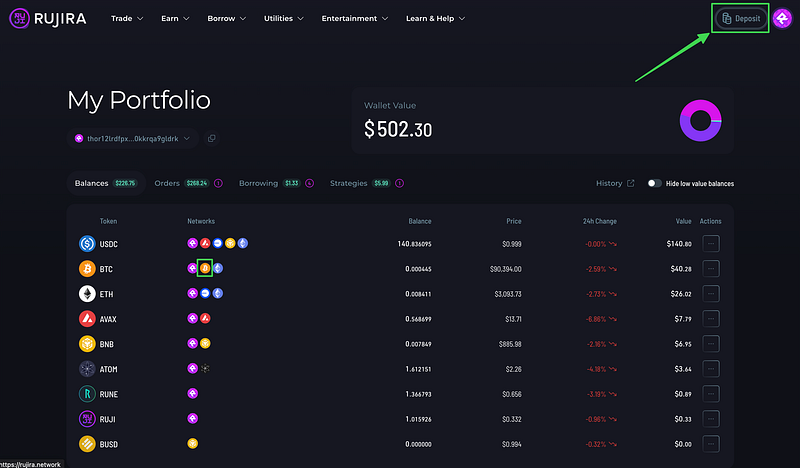
Visit to rujira.network
Connect Keplr (and/or other supported secondary) wallet in the top right corner
Click “Deposit” in the top-right corner
Select BTC to deposit BTC (or wBTC, etc.)
Enter the amount to deposit from Bitcoin network to Rujira. A small fee will be paid to the Bitcoin network, so don’t deposit the maximum amount, but slightly less to cover the Bitcoin network ‘gas fee’.
Press Confirm and sign the transaction in your wallet. Bitcoin is not a fast blockchain and block time is approximately 10 minutes, so it may take at least 10 minutes for your funds to arrive on Rujira.
Click on your account balance in the top-right to go to the Portfolio page and check if your funds have arrived.
You can now use your BTC with omnichain DeFi strategies on Rujira!
⚡️Start and try out our products
You have now successfully deposited your Bitcoin and/or other assets onto Rujira, and you can start using them across our suite of products. Rujira offers a wide range of DeFi products, designed for every type of user:
- Swap assets at the current market price using “Token Swap”
- Want to cash out when Bitcoin hits $150K? Set a limit order through “Spot Trading”
- Earn passive income by providing liquidity with “Strategies”
- Think you can predict the market? Make a leveraged trade with up to 50x using “Perps”
- Join as an investor and participate in new product launches via the “Launchpad”
- Lend your assets to other users and earn interest through our “Lending product”
⚡️Withdraw assets from Rujira
You can choose to keep your assets on Rujira or withdraw them at any time. If you would like to withdraw your assets, using BTC as an example, follow these steps.
Go to rujira.network
Connect your Keplr (or other supported) wallet using the button in the top right corner
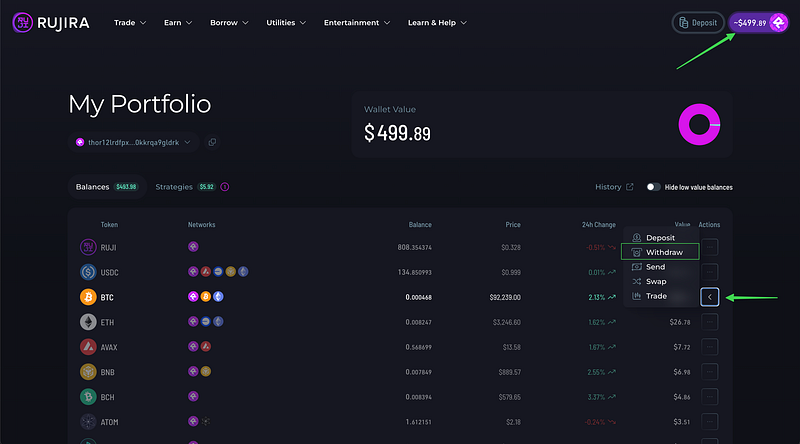
Navigate to Portfolio, by clicking your account balance in the top-right
Look for BTC, click on the three dots on the right side, and select “Withdraw”
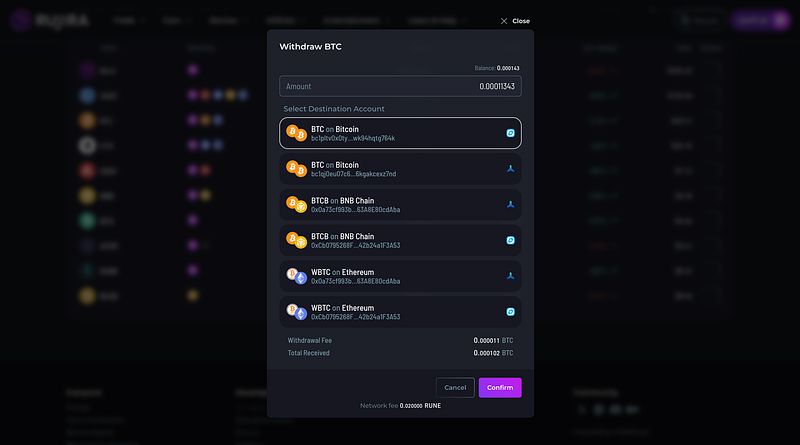
Choose the amount you want to withdraw, and select the destination address from your connected wallets, or add a custom address to receive the funds
Review the transaction details
Note: Make sure you have enough funds to cover the withdrawal fees. You will need:
1) RUNE gas fee, as shown in the bottom of the withdrawal window
2) BTC gas fee, shown at the bottom of the withdrawal screen (withdraw less than the maximum balance)
Press Confirm and sign the transaction in your wallet
Because we are withdrawing via the Bitcoin network, your withdrawal may take 10 minutes or longer to arrive.
After the blockchains processed your transaction, your BTC will be visible in your Rujira Portfolio overview if the withdrawal address and wallet are connected, and in your Bitcoin wallet.
⚡️ Assets on Rujira
On Rujira, we have access to a wide range of native assets, thanks to THORChain’s infrastructure. As THORChain continues to integrate new chains, the number of supported tokens keeps growing. It’s a symbiotic relationship: our scope expands not only through the chains THORChain adds, but also through the products we continue to build at Rujira.
This expanding foundation positions us well for the future of crypto. New coins, protocols, and asset types are launched every day, from stablecoins and RWAs to meme coins, forex, and even tokenized stocks. As we continue developing our App Layer, our goal is to support them all in a seamless, unified experience.
Stablecoins on Rujira
Rujira supports a wide range of stablecoins. With the U.S. Senate passing the GENIUS Act, Rujira is uniquely positioned to become the go-to liquidity hub for stables, powered by our omnichain foundation. Since we interact with many different stablecoins (including multiple variants of the same one, like Circle’s USDC on Ethereum, Base, Noble, and others) keeping things simple and consistent across our products is essential.
To avoid fragmentation and confusion, we have chosen to standardize around a single stablecoin for most use cases. The primary stablecoin used on Rujira is the Secured Asset form of USDC on Ethereum (USDC.ETH), which serves as the main pair asset across the App Layer.
This makes everything easier for users. Whether you are buying $RUJI or $BTC on the orderbook, opening a position, or providing liquidity in Perps, you’ll need USDC.ETH on your Rujira address.
We chose USDC.ETH not only for its wide adoption but also because it has the deepest liquidity on THORChain. Since all transactions are executed through THORChain, you won’t face high Ethereum gas fees. At this stage, transactions on the App Layer are free. However, if we need to introduce a fee to prevent spam or abuse, only a small amount of RUNE will be required for gas, keeping costs low and predictable.
Assets with multiple chain versions (like ETH or USDC)
With so many chains (Layer 1s) and additional networks built on top of them (Layer 2s), some assets have become multichain, meaning they exist in multiple versions across different blockchains. While this improves interoperability and user experience, it also requires users to pay close attention when moving assets between chains.
Common examples of multichain assets include ETH, USDC, and USDT.
- ETH is native to the Ethereum blockchain but also exists on Ethereum Layer 2s like Arbitrum, Base and Optimism, as well as wrapped ETH on various EVM-compatible chains like BNB Chain, Polygon and Avalanche..
- USDC is deployed across both EVM and non-EVM chains, including Ethereum, Base, Polygon, Arbitrum, Optimism, Avalanche, Solana, Stellar, Algorand, Hedera, and Cosmos (via Noble).
- USDT is available on Ethereum, Tron, BNB Chain, Solana, Polygon, Arbitrum, Avalanche, and several other networks.
The same applies to Rujira. Since we have access to all chains connected to THORChain, we also support multiple versions of assets like USDC, from Ethereum, Base, Avalanche, and soon Noble. To avoid confusion, we use a clear notation format: [asset].[chain]. For example, USDC on Ethereum is shown as USDC.ETH, and ETH on Base appears as ETH.BASE.
If you hold ETH or USDC, keep in mind that you must choose the correct chain when withdrawing from an exchange. The most commonly used chains for these assets are Ethereum and Base. Once your assets are on one of these networks, you will need to pay gas fees for any further transactions. These fees are paid to validators in the native token of the chain, ETH in both cases.
This means that if you withdraw USDC to Ethereum or Base, you must also send ETH to cover gas fees. Without ETH in your wallet, you won’t be able to move or use your USDC, which could leave your funds stuck until you send some ETH.
Some exchanges also support USDC on Noble, which is especially convenient because gas fees on Noble are paid in USDC itself. This removes the need to send additional ETH or other tokens, making it a smooth option for getting USDC onto Rujira.
Using BTC, XRP, or Other Native Assets Connected to THORChain
If you hold BTC, XRP, or any other native asset from a blockchain supported by THORChain (full list below), you will first need to withdraw it to that asset’s native chain. For example, if you hold BTC on the centralized exchange, send it to your Bitcoin wallet address. Once the asset arrives on its native chain, you can then deposit it into Rujira through our platform.
It’s important to remember that most native chains require you to pay gas fees in the chain’s own coin:
- BTC for Bitcoin
- XRP for Ripple
- LTC for Litecoin, and so on
So if you are sending BTC, make sure you leave a small amount in your wallet to cover network fees. Without it, the transaction can’t be processed.
Supported assets on Rujira
While there are millions of tokens in crypto, we are currently limited, due to technical constraints, to offering only the tokens that are available through chains connected to THORChain and have an active pool paired with RUNE on the THORChain Base Layer.
We are actively exploring ways to expand this offering through innovative solutions in the near future.
The currently available tokens are:
THORChain:
- Supported tokens: $RUNE, $RUJI, $TCY, $NAMI, $AUTO, $LQDY
- Gas fees paid in: $RUNE
Bitcoin:
- Supported tokens: $BTC
- Gas fees paid in: $BTC
Ethereum:
- Supported tokens: $ETH, $USDC, $USDT, $AAVE, $DAI, $DPI, $FOX, $GUSD, $LINK, $LUSD, $RAZE, $SNX, $TGT, $THOR, $USDP, $VTHOR, $WBTC, $XDEFI, $XRUNE, $YFI
- Gas fees paid in: $ETH
BNB:
- Supported tokens: $BNB, $ETH, $USDC, $USDT, $BTCB, $BUSD, $TWT
- Gas fees paid in: $ETH
Base:
- Supported tokens: $ETH, $USDC, $CBBTC, $VVV
- Gas fees paid in: $ETH
Avalanche:
- Supported tokens: $AVAX, $USDC, $USDT, $SOL
- Gas fees paid in: $AVAX
Cosmos Hub:
- Supported tokens: $ATOM
- Gas fees paid in: $ATOM
Litecoin:
- Supported tokens: $LTC
- Gas fees paid in: $LTC
Bitcoin Cash:
- Supported tokens: $BCH
- Gas fees paid in: $BCH
Dogecoin:
- Supported tokens: $DOGE
- Gas fees paid in: $DOGE
XRP Ledger:
- Supported tokens: $XRP
- Gas fees paid in: $XRP
Noble:
- Supported tokens: $USDC
- Gas fees paid in: $USDC
⚡️Questions and Help
While we continue to improve the experience, we understand that getting started onto Rujira can be challenging or that issues arise. If you need support with getting started on Rujira, please join our official Telegram chat (https://t.me/Rujira_Community) and we will help you with any question you have. In our official Telegram chat, make sure to only interact with team members and admins (with a tag in their name), and never answer to any DM’s. None of the team members and admins will DM you first, so anyone who does is most likely a scammer.
We also want to emphasize that all official updates, links, and announcements will come exclusively from the official Rujira X account. Any other sources claiming to provide guidance, links, or assistance are most likely scams. We urge you to stay vigilant and avoid engaging with unverified actors.

Related articles
![Rujira banner titled Open Data for Fair Finance, with a purple analytics chart showing rising bars and a growth line.]()
Aug. 20, 2026
Rujira Analytics: Open Data for Open and Fair Finance
- App-Layer
![Rujira banner titled Bringing Crypto Back to Its Roots, with an abstract purple tree growing across a dark background.]()
Aug. 12, 2026
Bringing Crypto Back to Its Roots
- App-Layer
![Rujira banner announcing the expansion of RUJI Money Market with 5 new lending vaults, 4 new assets to borrow, and 3 new collateral assets.]()
Aug. 5, 2026
RUJI Money Market Expands with New Lending and Borrowing Markets
- App-Layer
![Rujira banner announcing 18 new trading pairs on RUJI Trade with abstract purple liquidity routes.]()
Aug. 5, 2026
18 New Trading Pairs Are Now Live on RUJI Trade
- App-Layer
![Rujira banner announcing multi-collateral borrowing in RUJI Money Market.]()
Jul. 30, 2026
Multi-Collateral Borrowing Is Live on RUJI Money Market
- App-Layer
![Rujira overview showing native-asset trading, automated trading, lending, borrowing, and liquidations built on THORChain.]()
Jul. 28, 2026
THORChain and Rujira: A Shared Foundation for Omnichain DeFi
- App-Layer
![Rujira graphic introducing RUJI Money Market as a system for lending, borrowing, and bidding on liquidations.]()
Jul. 23, 2026
How RUJI Money Market Connects Lending, Borrowing, and Liquidations
- App-Layer
![]()
Feb. 9, 2026
How to Get Started With Rujira in Under a Minute
- App-Layer
![]()
Feb. 8, 2026
bRUNE: A Simple Way to Earn Yield on $RUNE
- App-Layer
![]()
Jan. 29, 2026
⚡️Weekly Recap — Week 05/2026⚡️
- App-Layer
![]()
Jan. 26, 2026
RUJI Trade: Bringing a new upgradable liquidity model to THORChain
- App-Layer
![]()
Jan. 22, 2026
⚡️Weekly Recap — Week 04/2026⚡️
- App-Layer
![]()
Jan. 21, 2026
⚡ Rujira’s Omnichain DeFi Unlocks Real Utility for Native Litecoin
- App-Layer
![]()
Jan. 21, 2026
Contact
- App-Layer
![]()
Jan. 19, 2026
RUJI Lending — Money Market
- App-Layer