This guide explains how to migrate your Merge tokens from Sonar to Keplr and convert them to $RUJI.
Sonar only supports the Kujira network, and will sunset with the migration to THORChain to be replaced by Station. This means it will not be possible to convert your tokens to $RUJI via Sonar, and you will need to download an alternative (mobile) wallet. The steps you have to follow depend on whether you have access to a recovery phrase.
To convert your Merge tokens to $RUJI, follow the steps outlined below:
Option 1: I have a recovery phrase.
Create a Keplr Mobile Wallet by importing an existing wallet.
(Optional) Buy $ATOM to transact on the Cosmos Hub chain.
(Optional) Send $ATOM to the Cosmos Hub.
(Optional) Buy $RUNE to transact on THORChain.
Convert your Merge tokens to $RUJI.
Option 2: I have lost my recovery phrase or set-up Sonar with a Passkey.
Create a Keplr Mobile Wallet with a new recovery phrase.
Buy $ATOM to transact on the Cosmos Hub chain.
Send your $ATOM and Merge tokens from the Sonar wallet to Keplr Mobile Wallet.
Buy $RUNE to transact on THORChain.
Convert your Merge tokens to $RUJI.
⚡️Option 1: I have a recovery phrase.
Create a Keplr Mobile Wallet by importing an existing wallet
When you have set-up your Sonar Wallet by using an existing recovery phrase, or by creating a new one, you can use this to set-up your Keplr wallet.
Download and install the Keplr Mobile wallet via https://apps.apple.com/nl/app/keplr-wallet/id1567851089 or https://play.google.com/store/apps/details?id=com.chainapsis.keplr.
Open Keplr Mobile Wallet and press “Important an existing wallet”
Press “Use recovery phrase or private key” and fill in the 12 or 24 words
Fill in a Wallet Name, password and press “Next”
Deselect Noble and press “Save”.
(Optional: Enable Biometric Authentication) Press “Done”.
Enable Kujira in Keplr
Open the Keplr Mobile wallet, press the settings icon in the top left corner and click “Add More Chains” at the bottom.
Search for Kujira and press “Add to Keplr.”
Once added, go back to the main screen and search for Kujira in the search bar.
Click “Manage,” select Kujira, and press Save.
(Optional) Buy $ATOM to Transact on the Cosmos Hub Chain
To perform transactions on the Cosmos Hub, you’ll need $ATOM to pay for gas fees. If you already own $ATOM on the Cosmos Hub, you can skip this step.
Follow these steps to buy and transfer $ATOM:
In the Sonar app, go to Swap.
At the top, choose $KUJI and enter 2. At the bottom, select $ATOM. The system will automatically calculate the equivalent dollar value in $ATOM.
Press Swap and wait for the transaction to complete.
Send $ATOM to the Cosmos Hub
Follow these steps to IBC your $ATOM to the Cosmos Hub:
Go toyour Keplr Mobile Wallet and press on ATOM (on Kujira).
Press on “Send” and then “IBC Send”.
Select “Cosmos Hub” and at Amount, choose “Max”.
Press “Next” and then “Approve”.
(Optional) Buy $RUNE to transact on THORChain.
To perform transactions on THORChain, you’ll need $RUNE to pay for gas fees. If you already own $RUNE on THORChain, you can skip this step.
Follow these steps to buy $RUNE:
Open your Keplr mobile wallet and press “Browser” at the bottom.
Go to https://rujira.network/swap/ and connect your Keplr in the top right corner.
Select “from” token $ATOM on Cosmos Hub and “to” token $RUNE on THORChain.
For $ATOM, fill in Amount 0.1. The system will automatically calculate the equivalent dollar value in $RUNE.
Click “Initiate Swap” and approve the transaction in your Keplr Wallet.
⚡️Option 2: I have lost my recovery phrase or set-up Sonar with a Passkey.
Create a Keplr Mobile Wallet with a new recovery phrase.
When you have set-up your Sonar Wallet via a Passkey or you have forgotten your recovery phrase, follow these steps:
Download and install the Keplr Mobile wallet via https://apps.apple.com/nl/app/keplr-wallet/id1567851089 or https://play.google.com/store/apps/details?id=com.chainapsis.keplr.
Open Keplr Mobile Wallet and press “Create a new wallet”.
Press “Create new recovery phrase”.
Your recovery phrase will appear and you have the choice to choose between 12 or 24 words. The more words a recovery phrase contains, the safer it is. Do not share your recovery phrase with anyone. Write it down or store it securely — this is the only way to regain access to your wallet.
Press “Next”, fill in the two words, wallet name, and password, then press “Next”.
Deselect Noble and press “Save”.
(Optional: Enable Biometric Authentication) Press “Done”.
Enable Kujira in Keplr
Open the Keplr Mobile wallet, press the settings icon in the top left corner and click “Add More Chains” at the bottom.
Search for Kujira and press “Add to Keplr.”
Once added, go back to the main screen and search for Kujira in the search bar.
Click “Manage,” select Kujira, and press Save.
Buy $ATOM to Transact on the Cosmos Hub Chain
For the second step and third step of the Merge, you will need to pay gas fees to do a transaction. If you already own $ATOM on the Cosmos Hub, you can skip this step.
Follow these steps to buy and transfer $ATOM:
In the Sonar app, go to Swap.
At the top, choose $KUJI and enter 2. At the bottom, select $ATOM. The system will automatically calculate the equivalent dollar value in $ATOM.
Press Swap and wait for the transaction to complete.
Send $ATOM to the Cosmos Hub
Follow these steps to IBC your $ATOM to the Cosmos Hub:
Go toyour Keplr Mobile Wallet and press on ATOM (on Kujira).
Press on “Send” and then “IBC Send”.
Select “Cosmos Hub” and at Amount, choose “Max”.
Press “Next” and then “Approve”.
Send Your Merge tokens from Sonar Wallet to Keplr Mobile Wallet
To get the $ATOM and Merge tokens to your Keplr Mobile wallet, for each token we will have to follow a similar process:
Send $FZN, $NSTK and $WINK from Sonar Wallet to Keplr Mobile Wallet
Open your Keplr Wallet and click on $KUJI. At the top, you will see your address along with a Copy icon. Press the icon.
Go to the Sonar wallet and press on $FZN, $NSTK or $WINK. A window will appear, press “Send”.
Recipient: Paste the KUJI wallet address from Keplr.
Amount: Press “Max”.
Memo: Leave this field empty.
3. Press “Send”.
Send $KUJI from Sonar Wallet to Keplr Mobile Wallet
Open your Keplr Wallet and click on $KUJI. At the top, you will see your address along with a Copy icon. Press the icon.
Go to the Sonar wallet and press on $KUJI. A window will appear, press “Send.”
- Recipient: Paste the KUJI wallet address from Keplr.
- Amount: Press “Max” and reduce the total by 0.1 $KUJI to ensure you have enough for gas fees. Example: If you want to send 100 $KUJI, manually change the amount to 99.9 $KUJI.
- Memo: Leave this field empty.
3. Press Send.
Buy $RUNE to transact on THORChain.
To perform transactions on THORChain, you’ll need $RUNE to pay for gas fees. If you already own $RUNE on THORChain, you can skip this step.
Follow these steps to buy $RUNE:
Open your Keplr mobile wallet and press “Browser” at the bottom.
Go to https://rujira.network/swap/ and connect your Keplr in the top right corner.
Select “from” token $ATOM on Cosmos Hub and “to” token $RUNE on THORChain.
For $ATOM, fill in Amount 0.1. The system will automatically calculate the equivalent dollar value in $RUNE.
Click “Initiate Swap” and approve the transaction in your Keplr Wallet.
⚡️Convert your $KUJI to $RUJI
To convert your Merge tokens on the Kujira network to $RUJI on the THORChain network, follow the steps outlined below. We will take $KUJI as an example but you will have to repeat these steps for every Merge token you own. You can swap between the tokens via the icons above the middle box.
Send $KUJI to Rujira and Deposit KUJI to merge to RUJI
Both sending KUJI from Kujira to Rujira and depositing KUJI in the RUJI merge contract are done via the same interface. In our example we assume that you haven’t sent any assets to Rujira yet, nor merged.
- Enter the amount of KUJI you have on Rujira and leave 0.1 KUJI for gas fees. The button will tell you to “Deposit KUJI to Merge to RUJI”.
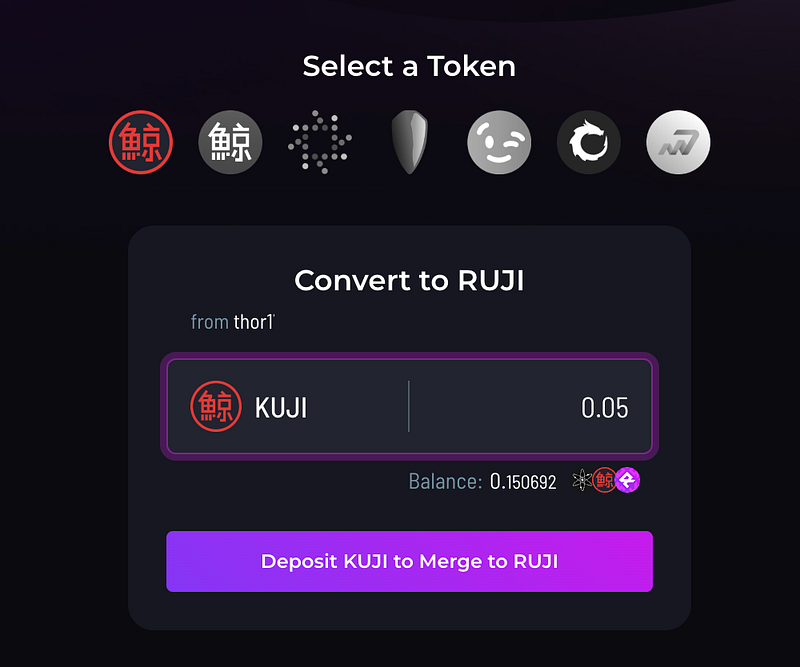
- Next step is to deposit from Kujira chain (or Cosmos Hub) to Rujira.
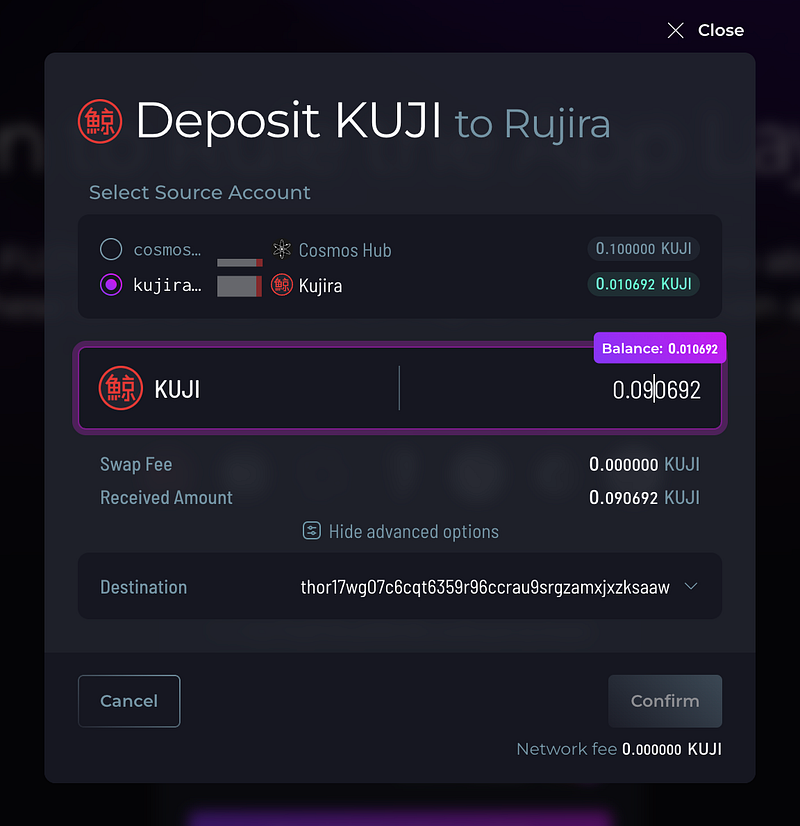
- After depositing KUJI from Kujira (or Cosmos Hub) to Rujira, you should see the KUJI amount that arrive on Rujira.
- Select the KUJI amount on Rujira and click Merge to RUJI.
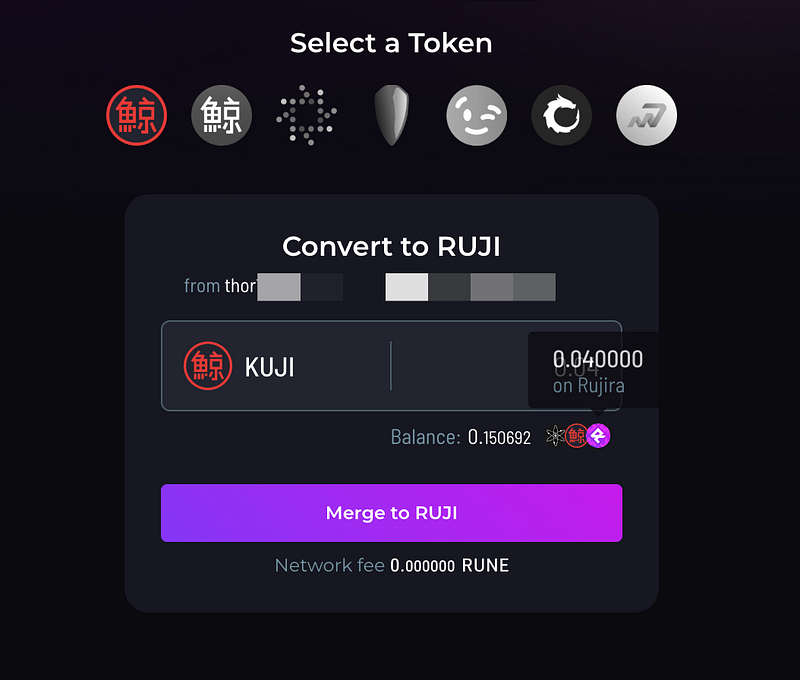
That’s it. Your KUJI is now merged in the RUJI merge contract. Repeat this process for each of the Merge tokens you own.
⚡️Claiming your $RUJI tokens
You will be able to claim your $RUJI on Token Generation Event (TGE) day, which will be announced at a later date. Once $RUJI is live, you can partially or fully claim your tokens on rujira.network/merge. For now, gas fees for interacting with the App Layer are set to 0, so you can claim your tokens and explore the ecosystem without paying any gas.
You have a few options for how to use your $RUJI:
- Keep your tokens locked in the Merge contract and earn bonus tokens.
- Unlock your tokens, start staking, and earn USDC rewards from protocol fees.
- Unlock your tokens and use them within RUJI products.
Keep in mind that withdrawing from the Merge contract is a one-way bridge, meaning you won’t be able to deposit your tokens back in.
Stay updated on the TGE by following announcements from the Rujira X main account.
⚡️Questions and help
We understand that some parts of the Merge are difficult, and that issues can arise. If you need support with the Merge, please join our official Telegram chat (https://t.me/Rujira_Community) and we will help you with any question you have. In our official Telegram chat, make sure to only interact with team members and admins (with a tag in their name), and never answer to any DM’s. None of the team members and admins will DM you first, so anyone who does is most likely a scammer.
We also want to emphasize that all official updates, links, and announcements will come exclusively from the official Rujira X account. Any other sources claiming to provide guidance, links, or assistance are most likely scams. We urge you to stay vigilant and avoid engaging with unverified actors.

Related articles
![Rujira banner titled Open Data for Fair Finance, with a purple analytics chart showing rising bars and a growth line.]()
Aug. 20, 2026
Rujira Analytics: Open Data for Open and Fair Finance
- App-Layer
![Rujira banner titled Bringing Crypto Back to Its Roots, with an abstract purple tree growing across a dark background.]()
Aug. 12, 2026
Bringing Crypto Back to Its Roots
- App-Layer
![Rujira banner announcing the expansion of RUJI Money Market with 5 new lending vaults, 4 new assets to borrow, and 3 new collateral assets.]()
Aug. 5, 2026
RUJI Money Market Expands with New Lending and Borrowing Markets
- App-Layer
![Rujira banner announcing 18 new trading pairs on RUJI Trade with abstract purple liquidity routes.]()
Aug. 5, 2026
18 New Trading Pairs Are Now Live on RUJI Trade
- App-Layer
![Rujira banner announcing multi-collateral borrowing in RUJI Money Market.]()
Jul. 30, 2026
Multi-Collateral Borrowing Is Live on RUJI Money Market
- App-Layer
![Rujira overview showing native-asset trading, automated trading, lending, borrowing, and liquidations built on THORChain.]()
Jul. 28, 2026
THORChain and Rujira: A Shared Foundation for Omnichain DeFi
- App-Layer
![Rujira graphic introducing RUJI Money Market as a system for lending, borrowing, and bidding on liquidations.]()
Jul. 23, 2026
How RUJI Money Market Connects Lending, Borrowing, and Liquidations
- App-Layer
![]()
Feb. 9, 2026
How to Get Started With Rujira in Under a Minute
- App-Layer
![]()
Feb. 8, 2026
bRUNE: A Simple Way to Earn Yield on $RUNE
- App-Layer
![]()
Jan. 29, 2026
⚡️Weekly Recap — Week 05/2026⚡️
- App-Layer
![]()
Jan. 26, 2026
RUJI Trade: Bringing a new upgradable liquidity model to THORChain
- App-Layer
![]()
Jan. 22, 2026
⚡️Weekly Recap — Week 04/2026⚡️
- App-Layer
![]()
Jan. 21, 2026
⚡ Rujira’s Omnichain DeFi Unlocks Real Utility for Native Litecoin
- App-Layer
![]()
Jan. 21, 2026
Contact
- App-Layer
![]()
Jan. 19, 2026
RUJI Lending — Money Market
- App-Layer